The other night in class I made a joke that I was going to “kill some Raspberry Pi over Thanksgiving.” What began as a cheap joke towards an easy target turned into reality after a trip I took to the University of Mary Washington last weekend. We spent a couple days in their new Information and Technology Convergence Center which co-locates their entire IT staff with their Digital Teaching and Learning Technology team.
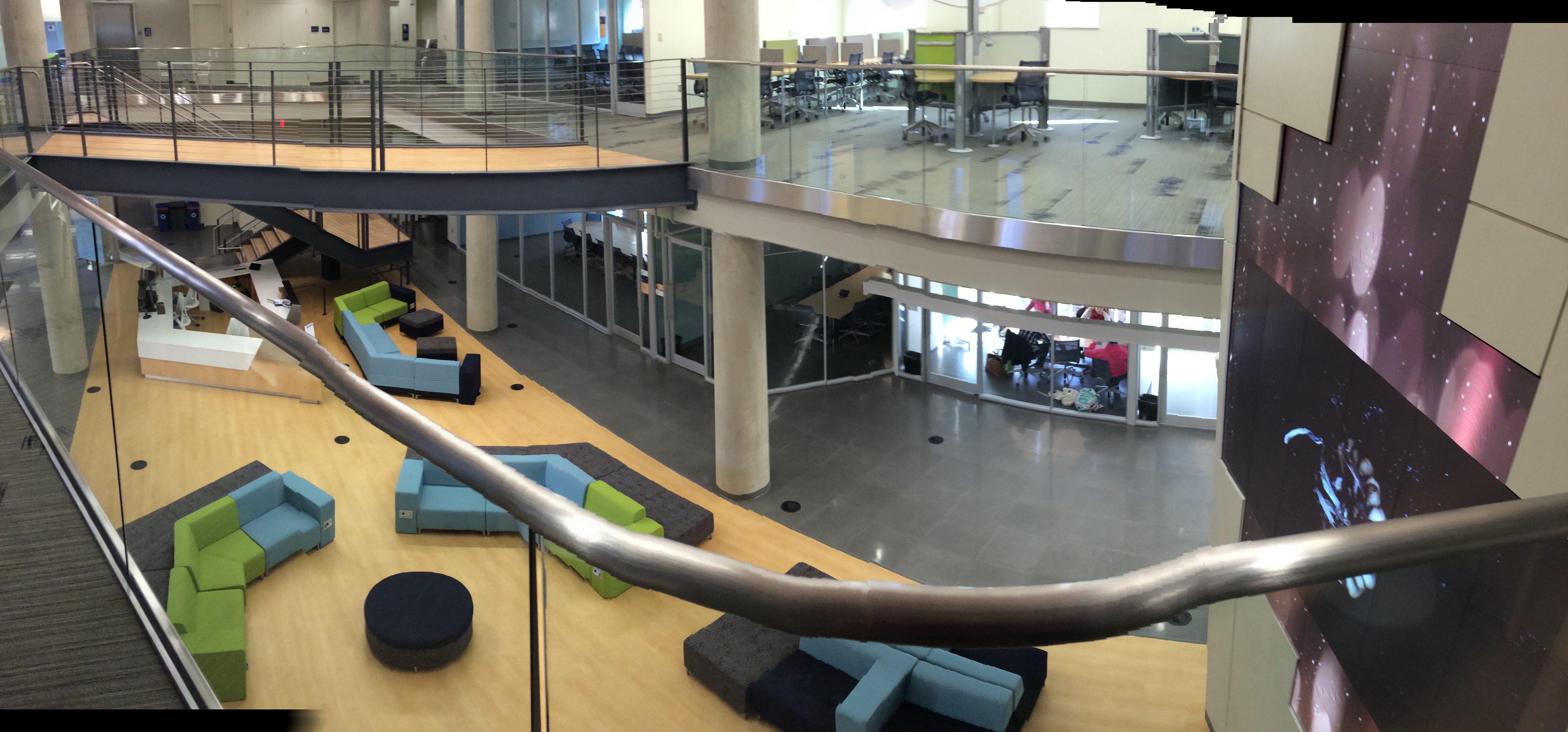
I could write a whole post about the space and how inspiring it is as it’s really championing what a student academic services space can be these days. A good litmus test for me on how well a space is functioning is how well is in inhabited. And on the Sunday afternoon before classes it would be hard to find a spot or room as a student.
We were huddled in a room they called the Incubator Classroom. The idea for the space was that the DTLT wanted a room that wasn’t centrally scheduled where an instructor who wanted to try a new pedagogy method, such as an active classroom, but didn’t want to commit to it for the semester, could try it once. For the second day, they brought in monitors that were hooked up to Raspberry Pi’s. This gave me a chance to really understand the breadth of what this little guy can do. It’s literally a full fledge computer (all you need is a monitor, keyboard, and mouse) but its also has GPIO capabilities meaning it can interact with other devices as well and you can buy a handful of sensors (temperature, light, sound, camera, etc) to do this. Seeing it in action created a small itch I felt necessary to scratch so I impulsively bought a starter kit on Amazon that included the computer, a case, and a handful of prototyping accessories such a breadboard, LEDs, resistors, and jumper cables. As I arrived home, it was waiting on my doorstep so I jumped in on Wednesday:
Serving up some Raspberry Pi for Thanksgiving… Should be fun! http://t.co/AfLuqCLnFU
— Adam Croom (@acroom) November 26, 2014
The kit that I bought came with a preloaded SD card which contained an NOOBS (New Out Of the Box Software). This software allows you to install a handful of different operating systems that can run on the Pi. I chose Raspbian, which seems to be the consensus recommendation.
One thing about the Pi is that the display is HDMI out. This is AWESOME if you want to watch hi-def video, but this can be bad news if your only HDMI display that you own is your living room TV *raises hand*. So while Raspbian was installing, I started researching how to control the Pi via my Mac (which is called running “headless”). I found an excellent tutorial which walked me step by step through how to do that. It recommended an excellent app called Remoter that allows you to access the Pi via SSH or through VNC and doesn’t take long at all to get up and running.
So my goal was to use all the pieces in my kit somehow which allows for some basic prototyping. The best case I could come with that would utilize all of the pieces was a program where you could turn a LED light on and off with the push of button. I’ll cut to the chase and go ahead and say so far I’ve failed. Sorry. But I have got the LED to work after going through a few tutorials.
1. Lynda.com – Up and Running with Raspberry Pi
This is a nice, short introduction to Pi and helped me understand its breadth. We just got a university-wide site license to Lynda at the OU, so I had free access to this. I am sure there are free versions of something close to this on YouTube that could suffice learning similar content.
2. YouTube.com – Raspberry Pi – GPIO & Python Series
This is an EXCELLENT introduction into leveraging Python on Pi. It’s tied to a different kit than what I have, but it comes with some sample code that you can leverage. If I was to recommend someone else getting into Pi, I would probably recommend this starter kit over mine simply because these tutorials are available. But for someone who doesn’t have the kit, it helped me understand where the language can differ whether you have a GPIO to Breadboard interface or not..
3. YouTube: Raspberry Pi B+ setting up LED(canakit)
So after running through the second set of tutorials, I checked this video out since it was tied to the kit I have. The good news is I got the LED to work (woohoo!). The bad news is that its actually not the most clean code and even gives some poor advice on setting up resistors on the breadboard (which I learned through the other tutorials). So I guess the lesson learned is use multiple sources when checking out video tutorials.
And now, what we’ve all been waiting for, here are the results of me tinkering around. Enjoy!
https://www.youtube.com/watch?v=cr5-WGYZPR8&feature=youtu.be
So I’m still working on getting the button to function which means I’m getting into some if, then statements finally and those are a little bit tougher for my head to completely grasp at the moment. I also am trying to get the Raspberry Pi in shape were I can run it completely headless, meaning no monitor necessary as it will connect automatically via wifi. What this would do is allow me to work on it from anywhere in my house and not have to hook it up to my TV to get the IP address info. I’ve checked out a couple tutorials on that, but have been unsuccessful so far.
In the end, this has been really fun to be immersed in a space where you are completely out of your element. I usually feel at home with tech and this one I felt myself entering with much trepidation. It funny how careful you will be when you sometimes don’t know what you’re doing. I teach areas in which I am so proficient, I sometimes forget what that feeling is like to touch a new program or language for the first time and need to empathize more with the novice learner.
One Comment